Design Guidelines
Please review our guidelines to make sure your file is print-ready.
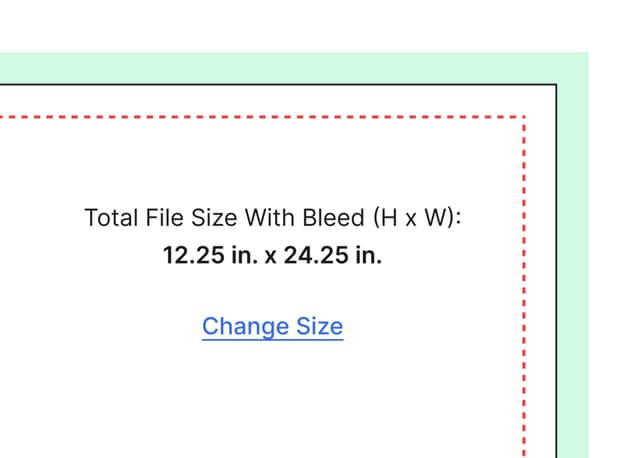
Upload your file at the exact size you want it printed.
File Size FAQ
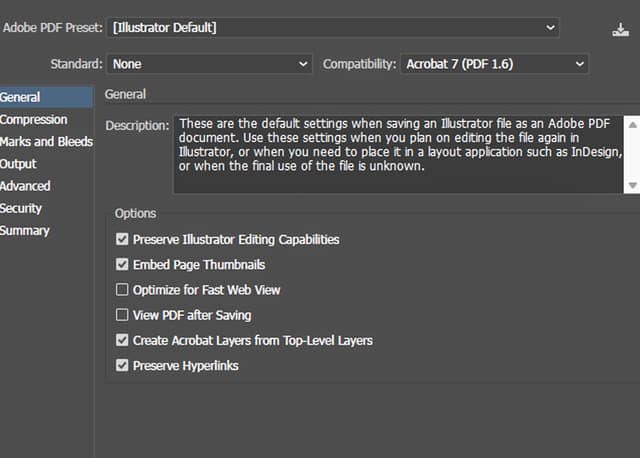
We prefer vector-based files.
File Format FAQ
1. Single Color Lettering & Etched Glass Upload
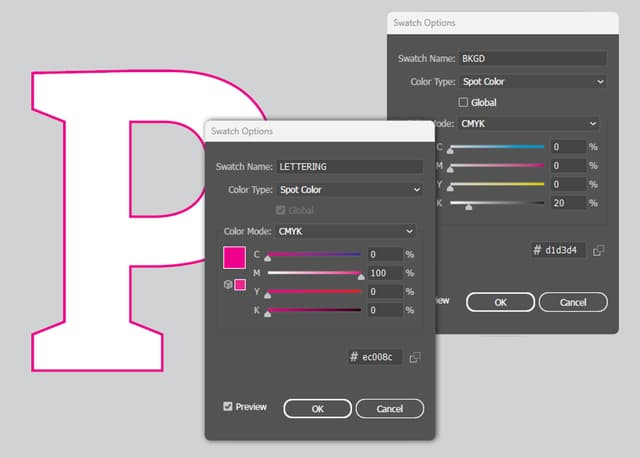
To create the file for single color lettering or etched glass, create a background using a spot color named "BKGD." For White lettering, set the background color to grey for PDF visibility.
This will be removed when replacing the color you selected on the product page. Ensure cut lines are 1pt (.0156″) strokes with the spot color named "LETTERING".
2. Exact Cut
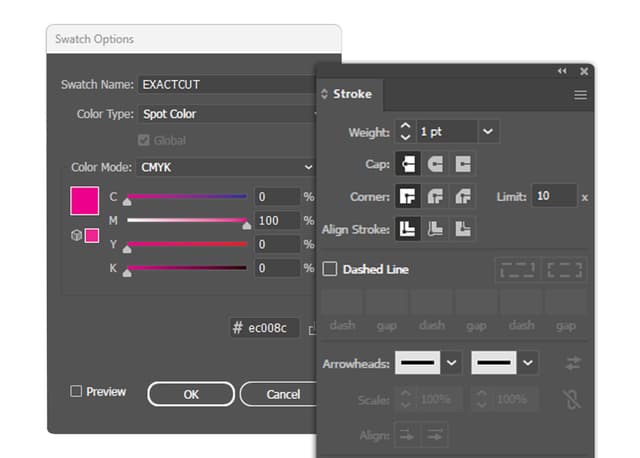
To create the file for decals with exact cut, cut lines should be 1pt (.0156″) strokes with the spot color named "EXACTCUT".
3. Shape Cut
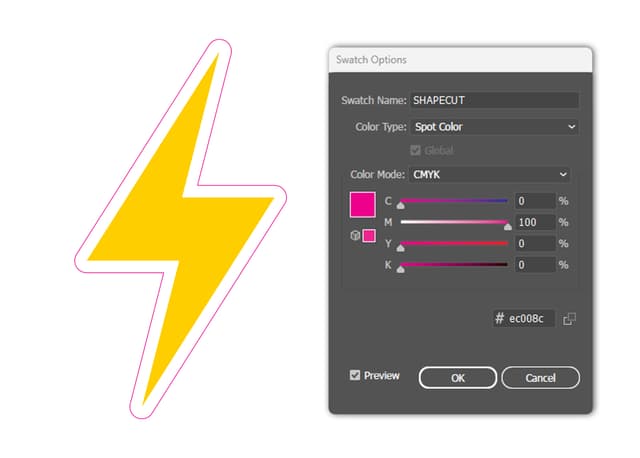
For custom shape cuts, we recommend using the pen tool in Adobe Illustrator to draw a path around your shape. This line should follow the contours/angles of the object.
To create the file for custom shapes and standard shapes, cut lines should be 1pt (.0156″) strokes with the spot color named "SHAPECUT".
If you're unable to use Adobe Illustrator, you can use our Design Studio tool to create your custom or standard shapes.
4. Clear & Brush Metal
Vector-based PDFs without backgrounds are recommended. In the Design Studio and on the proof page, we will replace the transparent area with clear/ brush silver / brush gold to match the product you have selected.
If the proof shows a white background, it comes from your original file. Please fix it and re-upload.
Exact Cut FAQ
Use High-Resolution images whenever possible.
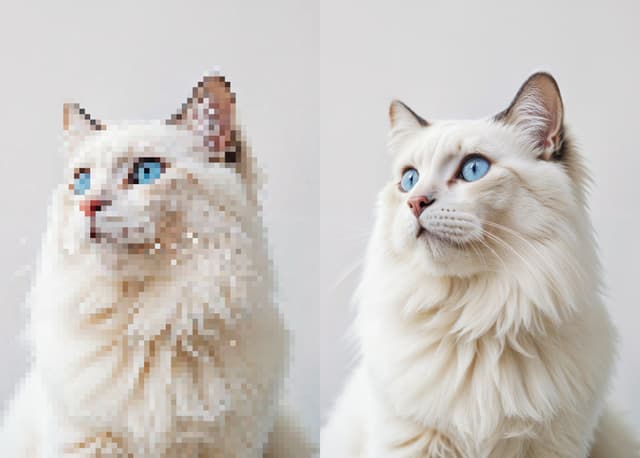
If you are uploading an image or photo, please use the largest file size with the highest resolution possible.
After you upload the file to our site, we will be able to display your resolution in PPI count. In general, 300 PPI is recommended, and below 100 PPI will be flagged as low resolution.
For outdoor signs, lower than 100 PPI is acceptable, since most of your audience will look at the signs from far distances.
High-Resolution Images FAQ
CMYK colors are recommended for color accuracy.
- Monitors produce light, so color on screen will always look brighter and more vibrant than the final print.
- Color brightness: RGB Proof on Screen (brightest & least accurate) > CMYK Proof on Screen > Actual Print
Most customers: Upload your RGB files as-is! Our system automatically converts to CMYK for printing.
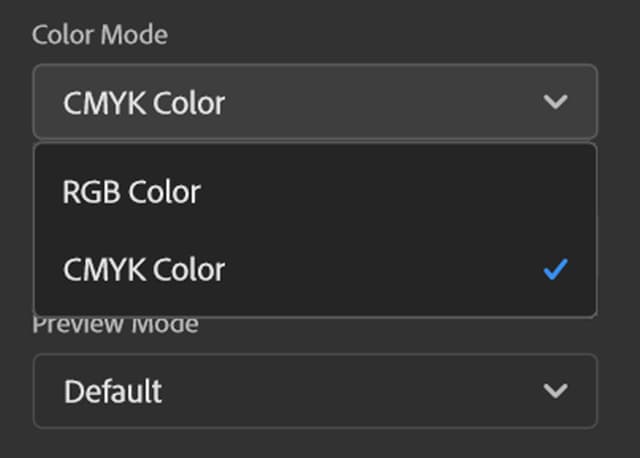
Professional designers: For best results, submit designs in CMYK color mode with all images pre-converted to CMYK before placement.
Color Settings FAQ
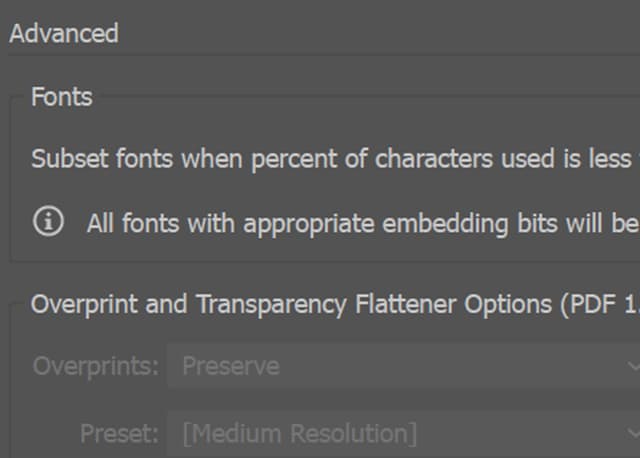
If using custom fonts, make sure they are embedded.
If you want to use custom fonts and cannot embed, you can convert your fonts to outlines or select new fonts in our Design Studio. Custom fonts that were not embedded will be converted to our default font Arial and displayed in your proof.
To check whether all fonts have been correctly embedded, view the font export settings in Adobe Acrobat.
Font Embedding FAQ